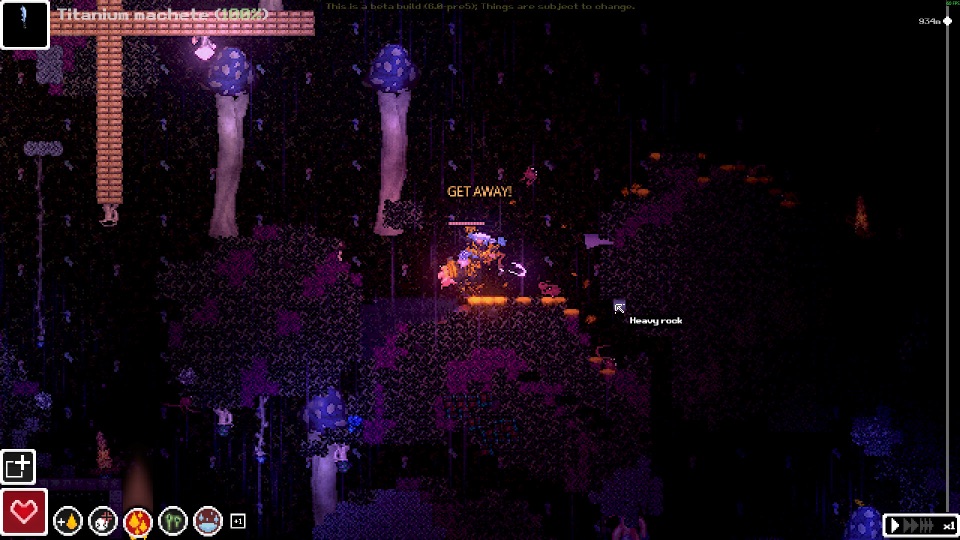
Official Steam screenshot · Game imagery © respective owners. Material credits.
Understand the difference between artwork and a skin mod
A custom skin supplies appearance files, while the replacement mod provides the system that uses those files in the game. Downloading an archive of artwork therefore is a different action from installing the loader and plugin that display it. Keep those roles separate when a tutorial, repository and skin collection all appear in the same search results.
The collected materials describe community sprite replacement rather than official character unlocks or stat upgrades. An artist’s design does not establish a new playable species or a different set of character abilities. If your goal is to change the appearance, focus on the skin system and its required file names instead of looking for an unsupported gameplay bonus attached to the artwork.
Choose a ChangeSkin package for the setup you use
ChangeSkin-Multiplayer is documented by its author for the Casualties Together context. Its Nexus page and repository describe the replacement system and link to the skin portal at skin.cat-bot.de. These are connected author resources rather than two independent demonstrations that every package version works with every release of the base game.
Check the exact release you plan to install. The collected distribution page includes demo 6.1 in its compatibility context, which does not establish full-release support. Match the game build, multiplayer package and skin-mod requirements before interpreting a guide’s screenshots as proof that the same steps apply unchanged to your own installation.
Install the required loader and multiplayer context
The documented demo modding workflow uses BepInEx, with the chosen package specifying the loader and other dependencies it expects. The Casualties Together README is the primary reference for that co-op installation, while the skin package supplies its own requirements. Do not treat the presence of one DLL as proof that both systems and their dependencies have been installed correctly.
Follow each package’s complete archive layout. General plugin-placement advice is useful for orientation, but it does not override a mod author’s instruction about resources or files that belong elsewhere. When several guides disagree, compare the releases they describe before combining steps, since a setup assembled from incompatible versions can fail even when every individual file was downloaded successfully.
Keep ChangeSkinMP and its resources together
The collected Nexus description places ChangeSkinMP.dll and its resources under BepInEx/plugins/ChangeSkinMP. That instruction identifies both the plugin and the accompanying directory, not just the executable component. Preserve the supplied layout so the replacement system has the files the author expects it to find beside the DLL.
A skin that does not appear is not automatically a problem with the artwork itself. First check that the correct replacement package and its resources are present in the documented location. This separates a missing installation component from a file-naming or loading issue that belongs to the selected skin, keeping the troubleshooting question focused on one stage at a time.
Use the command spelling for your installed release
The repository instructions and Nexus changelog use different command spellings. The research therefore does not combine them into a single universal command list. Read the instructions associated with the exact package release you installed, because selecting whichever spelling looks familiar can mix two different versions of the replacement system.
The same principle applies to the names expected for custom art files. Keep them as required by the chosen package rather than renaming files according to an unrelated tutorial. A working loading instruction depends on the release’s expected command and assets together, so changing both at once can obscure whether the problem was an incorrect command, a file name or missing resources.
Check the host and other players before expecting shared visibility
The Nexus description says multiplayer visibility depends on the relevant players and host having the mod. A local replacement is therefore not automatically a shared appearance that every participant can see. Confirm the group’s documented skin setup before assuming an image that appears on one machine has been distributed or recognized by all of the others.
This is distinct from getting the underlying co-op session running. Steam lobbies and the Casualties Together installation concern connection and multiplayer behavior, while the skin plugin concerns appearance. Keep the two tasks separate when asking for help so that a skin-visibility issue is not misdescribed as proof that multiplayer itself is unavailable.
Respect the source of community artwork
The collected materials point to creator repositories, distribution pages and a skin portal rather than granting permission to rehost their archives. Use those author sources to locate the appropriate instructions and artwork. A link to a skin collection is not a transfer of rights over every PNG or downloadable package published there.
Original fan characters and speedpaint videos can help identify an artist’s work without establishing compatibility or official game status. Keep creator credit, the chosen file and the replacement package’s requirements attached to the setup. That makes it easier to return to the right source when the art changes or the plugin instructions are revised for another version.
Troubleshoot the installation in a clear order
Start by identifying the game build and confirming the loader and multiplayer dependencies required by the skin package. Then check the ChangeSkinMP folder, its resources, the skin file names and the loading instructions for that release. Only after those local checks should you compare which participants have the mod when investigating shared visibility.
This order separates the artwork from the software that displays it and the session rules that determine who sees it. It does not promise that an old demo release works with the full game or that every custom image is compatible with every replacement tool. Use the current author documentation for the chosen package rather than turning one recorded installation into a universal skin workflow.
Check the complete appearance workflow before replacing files again
A useful skin checklist begins with the replacement package and its required game or multiplayer context. Confirm the loader, keep the documented resources with the plugin, then compare the custom artwork’s file names with the chosen release’s instructions. This order helps you tell whether the problem concerns missing software, an incomplete resource layout or the particular image being loaded instead of changing all three at once.
For shared appearance, add the participants and host to that checklist. The author’s visibility note is specific about the relevant players having the mod, so a locally visible result does not finish the multiplayer setup by itself. Check the documented group requirements before assuming that other players are seeing the same sprite or that a different artwork archive will fix a missing replacement system on another machine.
Keep the creator’s source attached to the skin you use. A skin portal, repository or video can help locate artwork and instructions, but none makes every image an official unlock or grants permission to redistribute the collection. The documented aim is sprite replacement through a community package, with compatibility, commands and resource names checked for that exact release.
Sources and version context
This guide uses research checked on November 8, 2026. Demo instructions, announced release content and community projects retain their separate version context. Follow the linked developer or project documentation for the source of each release or installation claim.